Atlassian — Official Rovo MCP Server
Connect Webrix to Atlassian's official Rovo MCP Server (https://mcp.atlassian.com/v1/mcp) to give your AI assistants access to Jira, Confluence, and other Atlassian products.
Prerequisites
- An Atlassian organization admin account
- A Rovo-eligible Atlassian Cloud plan
Steps
1. In Atlassian — authorize the redirect domain
- Go to https://admin.atlassian.com and log in as an organization admin.
- In the left sidebar, go to Rovo → Rovo MCP Server.
- Click Add domain and enter the domain of the redirect URI used by Webrix:
- SaaS:
https://{org}.mcp-s.com/{org}/api/auth/callback - On-prem:
{CONNECT_URL}/{org}/api/auth/callback
- SaaS:
- Click Add — Webrix can now complete the OAuth flow with Atlassian.
2. In Webrix — add the Atlassian MCP Server
- In the sidebar, go to MCP Servers under the Build section.
- Click + Add MCP Server in the top right.
- Search for Atlassian and click the card with the Official label.
- Review the pre-filled configuration and click Create Integration.
Webrix will create the integration, set up OAuth against Atlassian, and make it available to your AI assistants.
Troubleshooting
"Your organization admin must authorize access from a domain to this site"
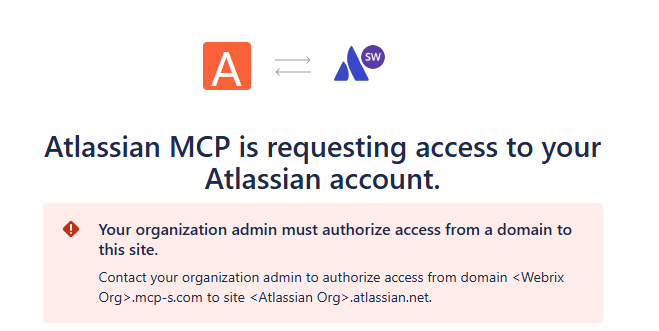
This error appears during the OAuth consent flow when the redirect URI domain hasn't been whitelisted in Atlassian. Check the redirect URI shown in the consent screen, then go to Rovo → Rovo MCP Server in Atlassian admin and add that domain under Add domain.
Notes
- The official Rovo MCP Server is published by Atlassian — Webrix passes through its capabilities without modifying tool behavior.
- Permissions follow your Atlassian org's roles and Rovo product access settings.
- For a Webrix-managed Atlassian connector (API token based), see Atlassian (Built-in).